User Guide
Popo is a desktop application for managing multiple types of task, and optimized for use via a Command Line Interface (CLI) while still having the benefits of a Graphical User Interface (GUI).
If you can type fast and need a personal assistant to keep track of lots of tasks, Popo task manager is here to help you!
Quick Start
- Ensure you have Java 11 or above installed.
- Download the latest
popo.jarhere. - Copy the file to the folder you want to use as the home folder for Popo Task Manager.
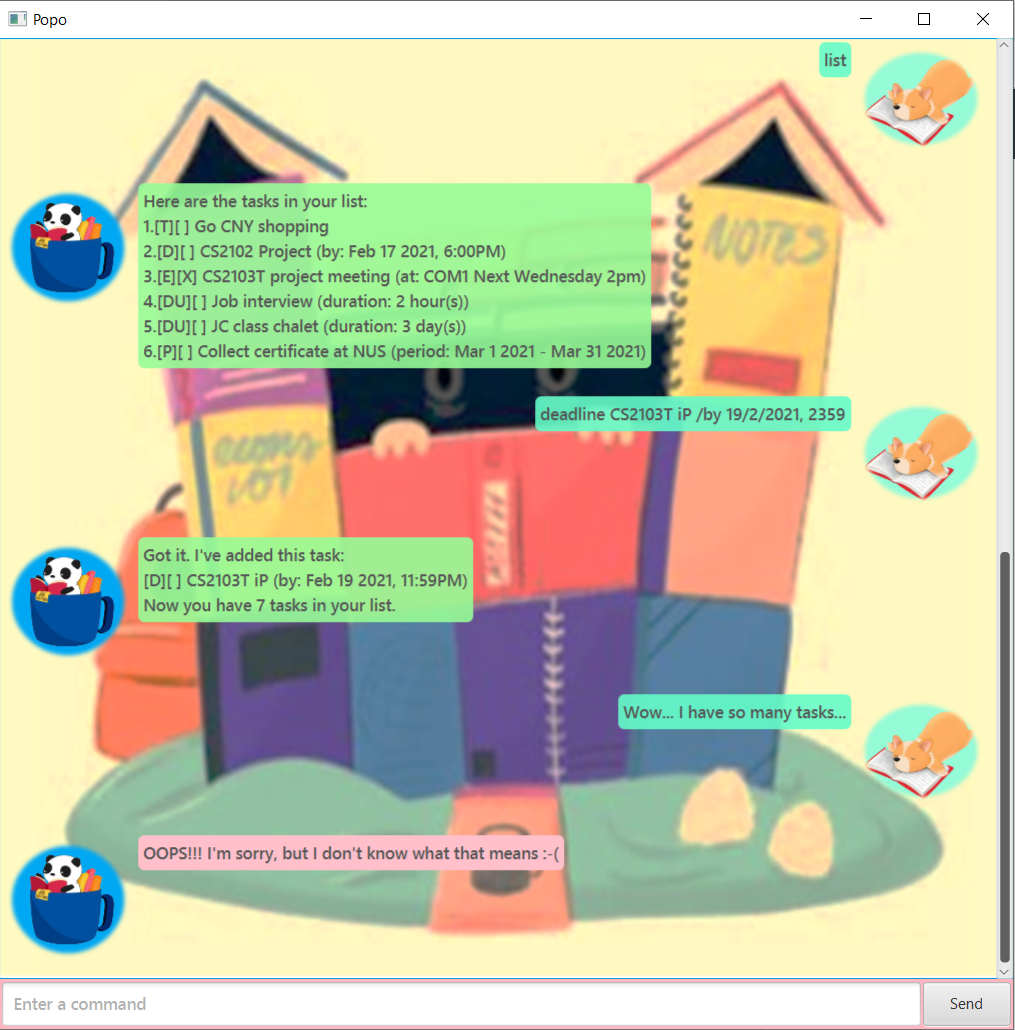
- Double-click the jar file to start the app. The GUI similar to the below should appear in a few seconds.
(You may also specify your own data source file. Learn how to do so here.)
Types of Tasks
Todo
A normal task with only a name

Deadline
A task with a name and a deadline date component
(and an optional deadline time component)

Event
A task with a name and a location description

Duration
A task with a name and a time period

Period
A task with a name and a starting and ending date

Features
Notes about the command format:
- Words in between
<>are the parameters to be supplied by the user.
E.g. Intodo <task_description,<task_description>is a parameter which can be used as
todo read book. - Items in square brackets are optional.
E.g.deadline <task_description> /by dd/mm/yyyy [HHMM]can be used as
deadline assignment /by 1/3/2021 2359or simply asdeadline assignment /by 1/3/2021. - Extraneous parameters for commands will be ignored.
E.g.list 123will be interpreted aslist.
Adding a ToDo task: todo
Adds a ToDo task to the task list.
Format: todo <task_description>
Examples:
todo Go CNY shopping
Adding a Deadline task: deadline
Adds a Deadline task to the task list.
Format: deadline <task_description> /by dd/mm/yyyy [HHMM]
Examples:
deadline Assignment 1 /by 31/1/2021deadline Assignment 1 /by 31/1/2021 1800deadline Assignment 2 /by 28/10/2021, 2359
Adding a Event task: event
Adds an Event task to the task list.
Format: event <task_description> /at <event_time>
Examples:
event Project Meeting /at NUS SoC COM1-0210
Adding a Duration task: duration
Adds a Duration task to the task list.
Format 1: duration <task_description> /days <number>
Format 2: duration <task_description> /hours <number>
Format 3: duration <task_description> /minutes <number>
Examples:
duration Read report /days 3duration Practice exam /hours 2duration Eat lunch /minutes 30
Adding a Period task: period
Adds a Period task to the task list.
Format: period <task_description> /start dd/mm/yyyy /end dd/mm/yyyy
Examples:
period Collect certificate at NUS /start 1/3/2021 /end 31/3/2021
Listing all tasks: list
Shows the full list of tasks.
Format: list
Marking a task as completed: done
Marks the specified task in the task list as completed.
Format: done <task_number>
- Marks the task at the specified index as completed.
- The index refers to the index number of the task shown by the
listcommand.
Examples:
done 2
Deleting a task: delete
Deletes the specified task from the task list.
Format: delete <task_number>
- Deletes the task at the specified index.
- The index refers to the index number of the task shown by the
listcommand.
Examples:
delete 2
Finding a task by keyword: find
Finds all tasks whose names contain the given keyword(s).
Format: find <keyword>
- Only tasks with names containing the exact keyword(s) are returned.
Examples:
find bookfind read book
Viewing help: help
Displays all available commands and their usages.
Format: help
Exiting the program: bye
Exits the program.
Format: bye
FAQ
Q: What is the default data source file?
A: From the base folder where you store the popo.jar file, the
default data source file can be found at ./data/popo.txt.
Q: Is it possible to specify my own data source file? How do I specify my own data source file?
A: Yes. To specify your own data source file, you have to run the jar file in your terminal or
command prompt with an additional argument indicating the file path of your own data
source file. The easiest way is to cd into the base directory containing the popo.jar file, and
run
java -jar popo.jar ./path/to/data/file/datasource.txt.
E.g. java -jar popo.jar ./mydata/mytasks.txt
Q: Do I have to pass in a specific date format? Which date formats are acceptable?
A: Yes. We only accept the date format dd/mm/yyyy currently.
Q: Why is an error showing when I try to open the program?
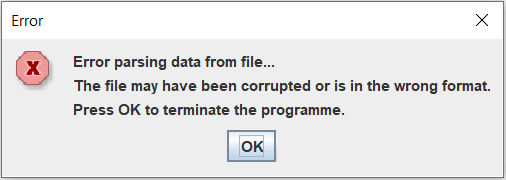
A: If an error message box similar to the below is showing when you try to boot up
the program, the data source file may have been corrupted and the data cannot be parsed
into the required format for the tasks.
Command Summary
| Action | Format & Examples |
|---|---|
| Todo | todo <task_description> E.g. todo Go CNY shopping |
| Deadline | deadline <task_description> /by dd/mm/yyyy [HHMM] E.g. deadline Assignment 1 /by 31/1/2021 1800 |
| Event | event <task_description> /at <event_time> E.g. event Project Meeting /at NUS SoC COM1-0210 |
| Duration | duration <task_description> /days <number> duration <task_description> /hours <number> duration <task_description> /minutes <number> E.g. duration Practice exam /hours 2 |
| Period | period <task_description> /start dd/mm/yyyy /end dd/mm/yyyyE.g. period Collect certificate at NUS /start 1/3/2021 /end 31/3/2021 |
| List | list |
| Done | done <task_number>E.g. done 2 |
| Delete | delete <task_number>E.g. delete 2 |
| Find | find <keyword>E.g. find book |
| Help | help |
| Exit | bye |